Tic Tac Toe Lab Exercise Part 6-7
Step 6
Handle a player clicking a square with a handleClick function.
a. Create a function called handleClick. It will have an event parameter.
b. Attach an event listener to the game board using one of the two options below. The first option is the standard path, and the second is the Level Up path.
Ensure you choose only one path.
Option 1: Add an event listener to each of the existing squareEls with a loop. Set up the event listener to respond to the 'click' event. The event listener should call the handleClick function you created in step 6a.
Option 2 - Level Up 🚀: Add a new cached element reference that will allow you to take advantage of event bubbling. Set up an event listener on it that responds to the 'click' event. On the 'click' event, it should call the handleClick function you created in step 6a. If you use this method, you’ll need to ensure the element the user clicks is a square! If they click anywhere else on the board, return out of the function to disallow the move. This can be accomplished more easily once you obtain the index of the square clicked in the next step!
c. Obtain the index of the clicked square. To do this, get the index from an id assigned to the target element in the HTML. Assign this to a constant called squareIndex.
💡 Each
idcorresponds with an index in ourboardarray.
d. If the board has a value of 'X' or 'O' at the squareIndex position, immediately return out of handleClick. That square is already taken. Also, if winner is true, immediately return out of handleClick because the game is over.
Next, we will create a collection of smaller functions to break down the remaining functionality of our handleClick function. These functions will live in the global scope. They will also be invoked in a specific order inside of our handleClick function.
6.1 - placePiece()
a. Create a function named placePiece that accepts an index parameter.
b. Update the board array at the index so that it is equal to the current value of turn.
💡 For testing purposes, on the line immediately after you’ve updated the board array, add a console log of the
boardarray.
c. In the handleClick function, call the placePiece function you just created. Pass squareIndex to it as an argument.
💡 If you added a console log above, you should now be able to click spaces on the board, and the corresponding space in the
boardarray should change from a''to a'X'.
6.2 - checkForWinner()
a. Create a function called checkForWinner.
b. Determine if a player has won using one of the two options below. The first option is the standard path, and the second option is the Level Up path.
Ensure you choose only one path.
-
Option 1 This option won’t take advantage of the
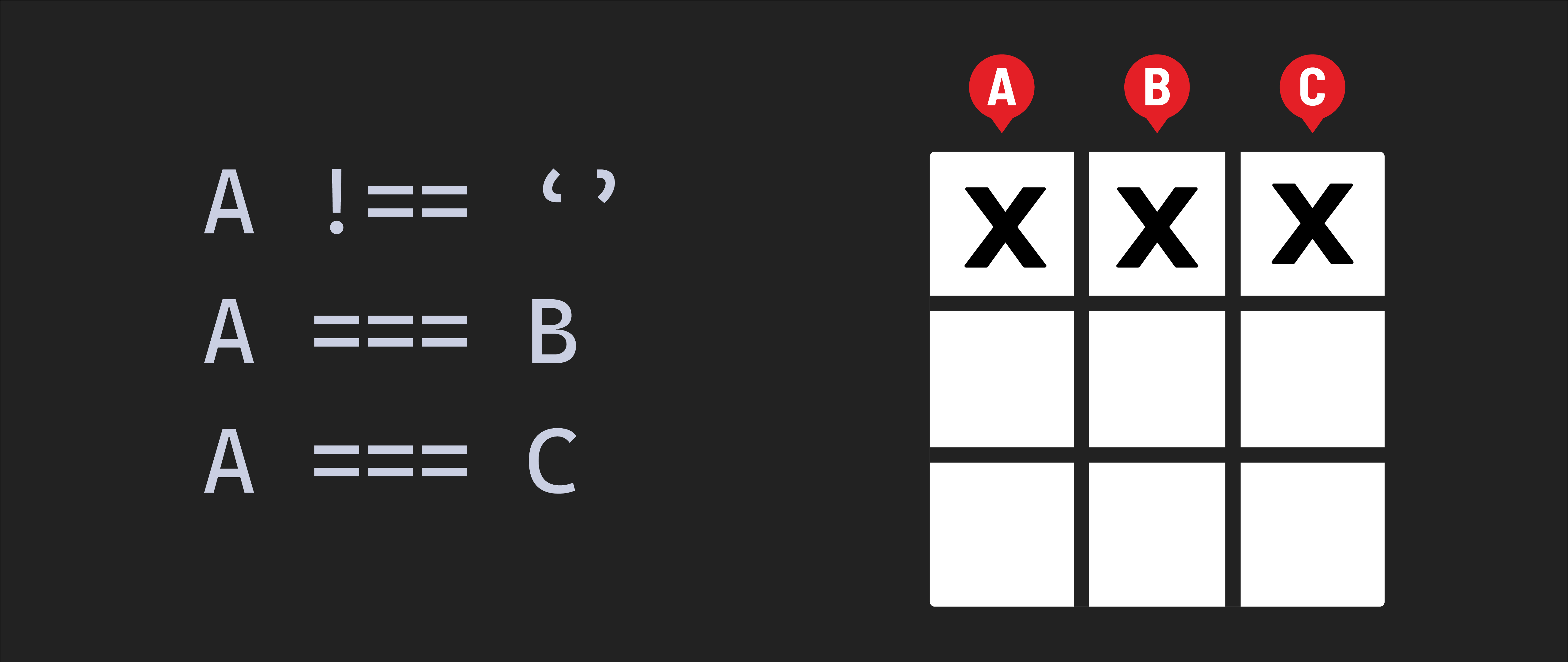
winningCombosarray, but using it as a reference will help you build a solution.For each winning combination, you’ll check if the first position is something other than an empty string. If it is, you’ll check if the value in the first position matches the value in the second position. If it is, you’ll check if the value in the first position matches the value in the third position. If it is, then you’ll have a winner! Let’s break that down step-by-step:
-
Reference the winning combinations you wrote in step 5 and the
boardarray. Use the three values in each winning combination to retrieve the values held in those index positions of theboardarray. -
For example, the first winning combination is
[0, 1, 2], representing the top row. Using that winning combination as a guide, you’ll need to access the values held in the board array’s0,1, and2indexes. -
Check the following for each of the eight winning combinations:
-
Check to see if the value held in the first position is not an empty string
''. -
Also, check to see if the value held in the first position equals the value held in the second position.
-
Also, check to see if the value held in the first position equals the value held in the third position.
-
If those three conditions are all true, then someone has won.
-
-
If someone has won on any of the eight winning combinations, set
winnertotrue.
-
-
Option 2 - Level Up 🚀 This method takes advantage of the
winningCombosarray you wrote in step 5.-
Loop through each of the winning combination arrays defined in the
winningCombosarray. Use the three values in each winning combination to retrieve the values held in those index positions of theboardarray. -
For example, the first winning combination is
[0, 1, 2], representing the top row. Using that winning combination as a guide, you’ll need to access the values held in the board array’s0,1, and2indexes. -
Check the following for each of the eight winning combinations:
-
Check to see if the value held in the first position is not an empty string
''. -
Also, check to see if the value held in the first position equals the value held in the second position.
-
Also, check to see if the value held in the first position equals the value held in the third position.
-
If those three conditions are all true, then someone has won. Set
winnertotrue.
-
-
c. In the handleClick function, call the checkForWinner function immediately after calling the placePiece function.
💡 This function’s only job is to determine if there is a winner. For testing purposes, add a console log for
winnerafter you’ve updated thewinnerstate.If you click every space that makes up a single winning combination (for example, the top row) on the board,
winnershould becometrue.
6.3 - checkForTie()
a. Create a function named checkForTie.
b. Check if there is a winner. If there is, return out of the function.
c. Check if the board array still contains any elements with a value of ''. If it does, we can leave tie as false. Otherwise, tie should be set to true.
💡 For testing purposes, add a console log for
tieafter you’ve updated thetiestate.
d. In the handleClick function, call the checkForTie function immediately after calling the checkForWinner function.
💡 This function’s only job is determining if all available moves have been played.
If you click every space on the board so that the
boardarray no longer has any empty strings (''), change the value oftietotrue.
6.4 - switchPlayerTurn()
a. Create a function called switchPlayerTurn.
b. If winner is true, return out of the function - we don’t need to switch the turn anymore because the person that just played won!
c. If winner is false, change the turn by checking the current value of turn. If it is 'X' then change turn to 'O'. If it is 'O' then change turn to 'X'.
💡 For testing purposes, add a console log for
turnafter you’ve updated theturnstate.
d. In the handleClick function, call the switchPlayerTurn function immediately after calling the checkForTie function.
💡 This function’s only job is to switch the turn after a player has made a selection and didn’t win.
If you click a space on the board,
turnshould flip from'X'to'O'or from'O'to'X'.
6.5 - Tying it all together
a. Finally, now that all the state has been updated, we need to render that updated state to the user by calling the render function we wrote earlier.
💡 Remember, we use
renderto call upon two other functions (updateBoardandupdateMessage). Both of these functions deal with updating different aspects of the user interface.Technically, the code in each function could be moved directly inside
render, but it makes sense to divide this logic based on the area of the user interface being altered.Your functions should accomplish as specific a task as possible.
Step 7 - Create Reset functionality
a. Add a reset button to the HTML document. Give it an id of reset.
b. Store the new reset button element as a cached element reference in a constant named resetBtnEl.
c. Attach an event listener to the resetBtnEl. On the 'click' event, it should call the init function you created in step 3.
💡 You’re done! As a final step, test the game out to ensure everything is working as expected. Consider edge cases, and use console logs to investigate your code if anything is behaving oddly.
Also remove the console logs you added for testing purposes, they should no longer be necessary.