Intro to Java Writing Your First Java App
Learning objective: By the end of this lesson, students will be able to create Java files from the command line and construct a basic Java app.
Howdy Partner
We’ll build a classic app to get up to speed with any language - Howdy, Partner. We need a file to work in though, let’s create one in IntelliJ’s built-in terminal.
In the menu bar, select the View option. Find the Tool Windows option, then select Terminal.
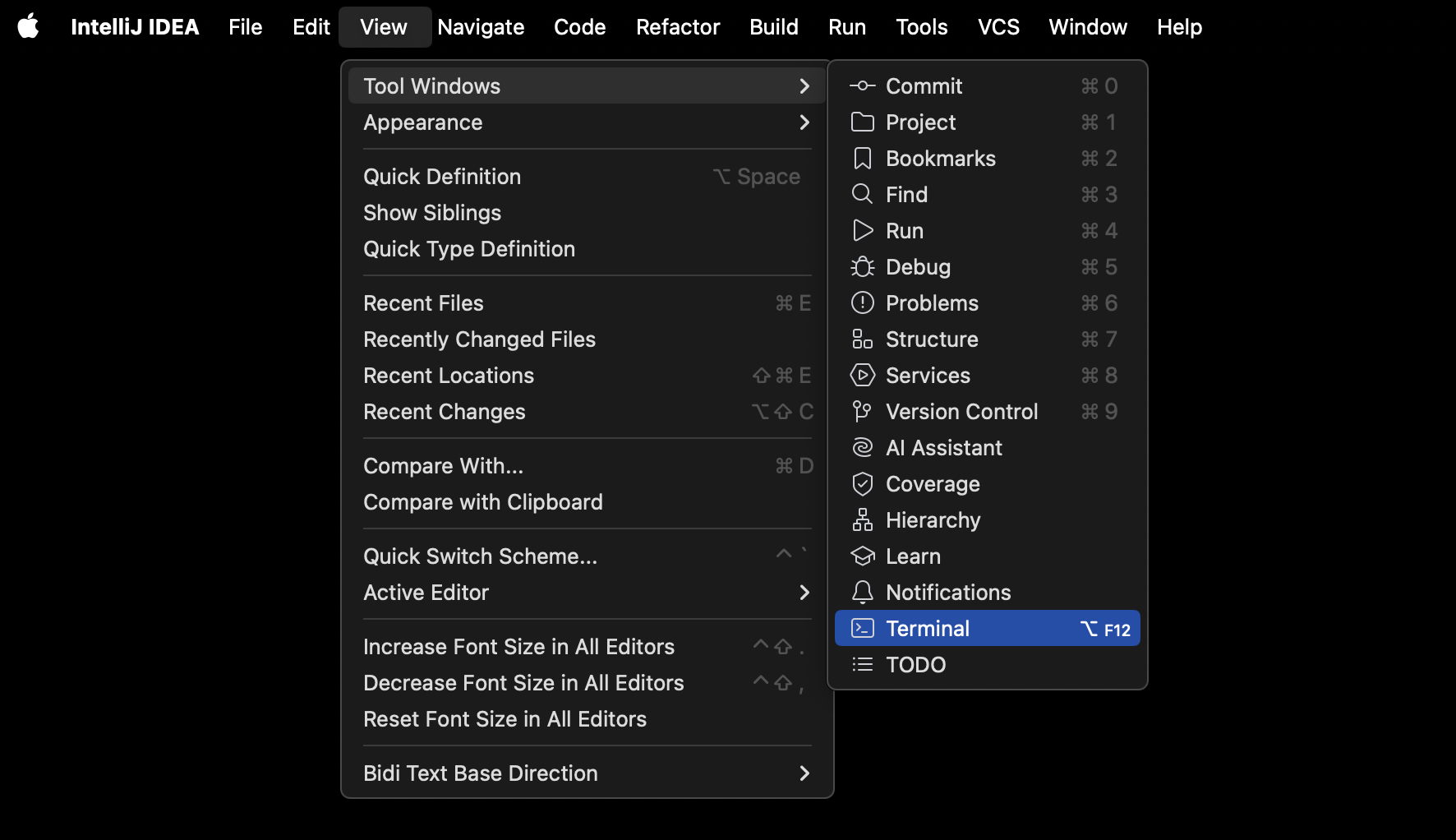
🧠 You can also use a keyboard shortcut to open the terminal: Option + F12 on macOS or Alt + F12 on Windows and Linux.
The terminal will launch. The working directory will automatically be set to our project’s directory as a handy bonus.
Create a file named HowdyPartner.java inside the src directory:
touch HowdyPartner.java
We’ll work with more complex file structures as we make larger apps; for now, we’ll stick with a simpler structure to get us going.
Return to the project in the GUI above the terminal and double-click the HowdyPartner.java file to open it.
All Java files must be defined as a class, so let’s begin with a class definition. This class definition must match the name of the file, so we’ll call ours HowdyPartner:
HowdyPartner.java
public class HowdyPartner {
}
By convention, class names will be written in upper camel case (also referred to as Pascal case) - each word is joined so there are no spaces or characters between them, and every word starts with an uppercase letter.
Then, all Java programs require a main() method representing the program’s entry point. This method will automatically be invoked when we run our Java file. The following method must be placed inside the HowdyPartner class definition:
HowdyPartner.java
    public static void main(String[] args) {
    }
So what’s going on here? Let’s break down the syntax:
![public static void main(String[] args) public is labeled with a 1, static is labeled with a 2, void is labeled with a 3, main() is labeled with a 4, and String[] args is labeled with a 5.](/modular-curriculum-all-courses/intro-to-java/writing-your-first-java-app/assets/main-syntax.png)
1. public
First, the public keyword, used for the HowdyPartner class and the main() method, declares these to be available anywhere. On the other hand, a private method or class would only be available to other members of the same class. You can find more details here.
2. static
Next, the static keyword indicates that this method belongs to the HowdyPartner class. The opposite of a static method would be an instance method, where the method belongs to the objects the class creates. To run an instance method, you must create a new class instance with the new keyword and call the method on the instantiated object.
3. void
void indicates the data type of the method’s return value, which will be nothing at all in the case of this method. Methods in Java require you to describe the data type of the return value of a method in their definition to enable future type-checking.
4. main()
Finally, we can name our method. In this case, the main() method is absolutely required in Java programs and must be named main. By convention, methods will be named in lower camel case - each word is joined so there are no spaces or characters between them, and every word after the first word starts with a capital letter.
5. String[] args
Inside the parentheses, you’ll notice that the method takes in one parameter: String[] args. String indicates the type, and the array brackets tell the method to accept a list of Strings. The parameter is named args by convention. This array represents any command line arguments you pass when running the method - even though the app we’re writing won’t do anything with these arguments they must be included.
This might be a lot to take in initially, but this syntax will become more manageable with practice. Let’s write the one line of code that will do what we want: Print Howdy, Partner! to the console.
Print Howdy, Partner! to the console
2 min
How do we do that? Take a moment to figure out how to print to the console by doing some independent research. You may want to use Google or an AI assistant.
🧠 As you complete this activity, note that the semicolon character must be used at the end of each statement in Java.
Comments
A quick note on comments. In Java, we have two options for writing comments:
// I'm a single-line comment. Just lil ol' me.

/*
    I'm a multi-line comment.
    There are several of us.
    And we all get along fabulously.
*/
Comment on your code so far
5 minJump back into HowdyPartner.java and add comments to your code explaining what the class definition means and what the main() method does in your own words, along with describing the syntax for each.