Intro to Git and GitHub GitHub Fundamentals
Learning objective: By the end of this lesson, students will be able to create and clone a GitHub repository and open it in VS Code.
Creating a repository
Here are the steps to creating a new repository on GitHub:
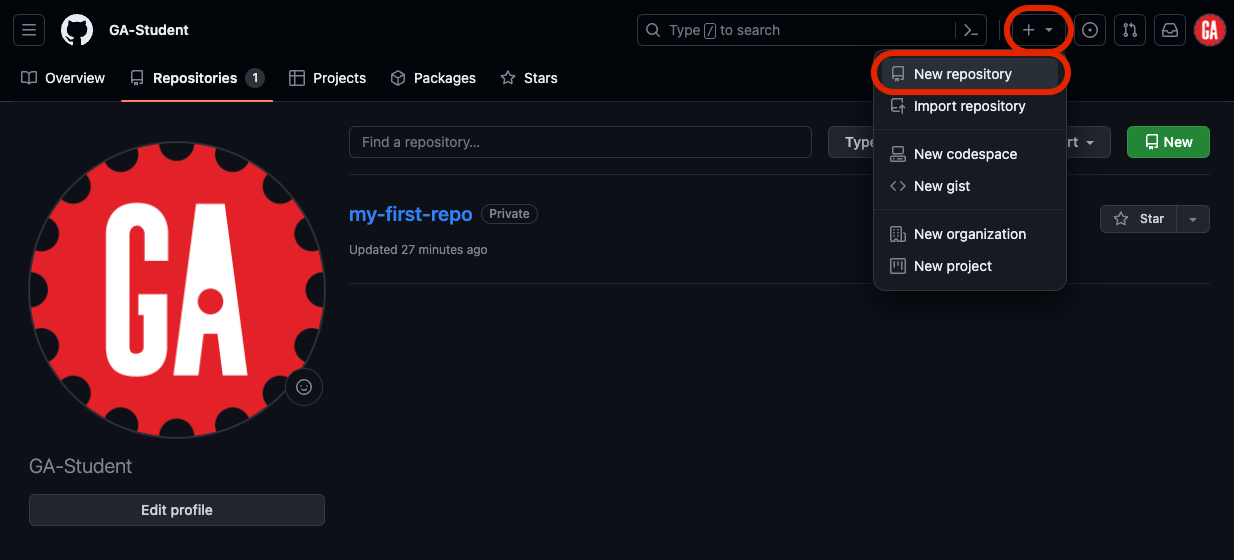
There are two primary ways to get to the new repository page. You can use the dropdown menu from the main nav bar:
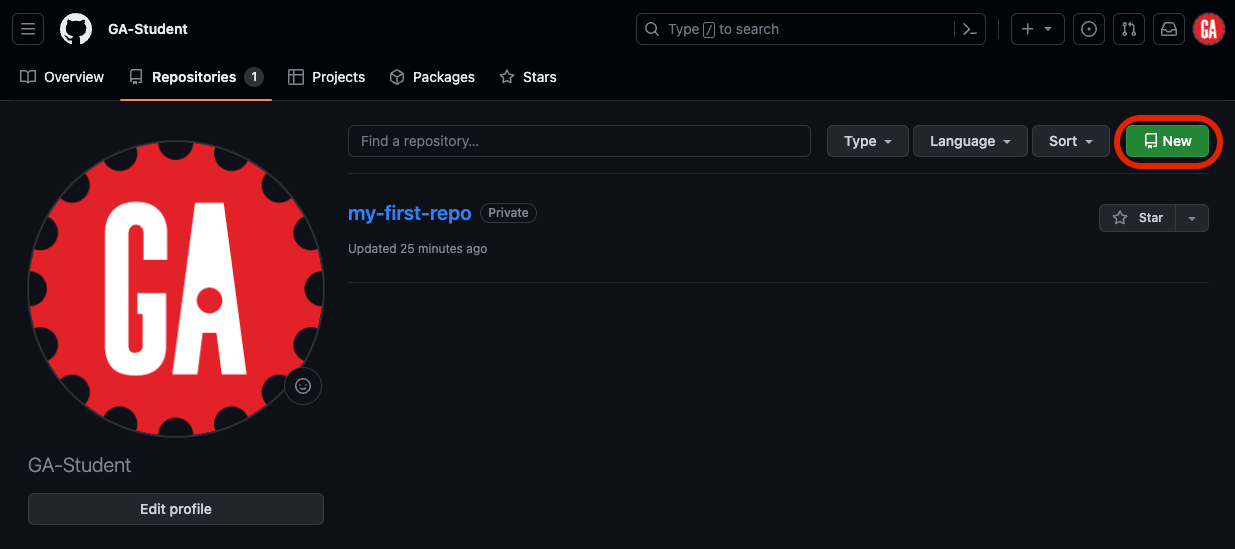
If you’re on your GitHub profile page, you can alternatively click on the repositories tab and select the New button:
⚠ If you have never made a repository, you will not have a repository tab yet!
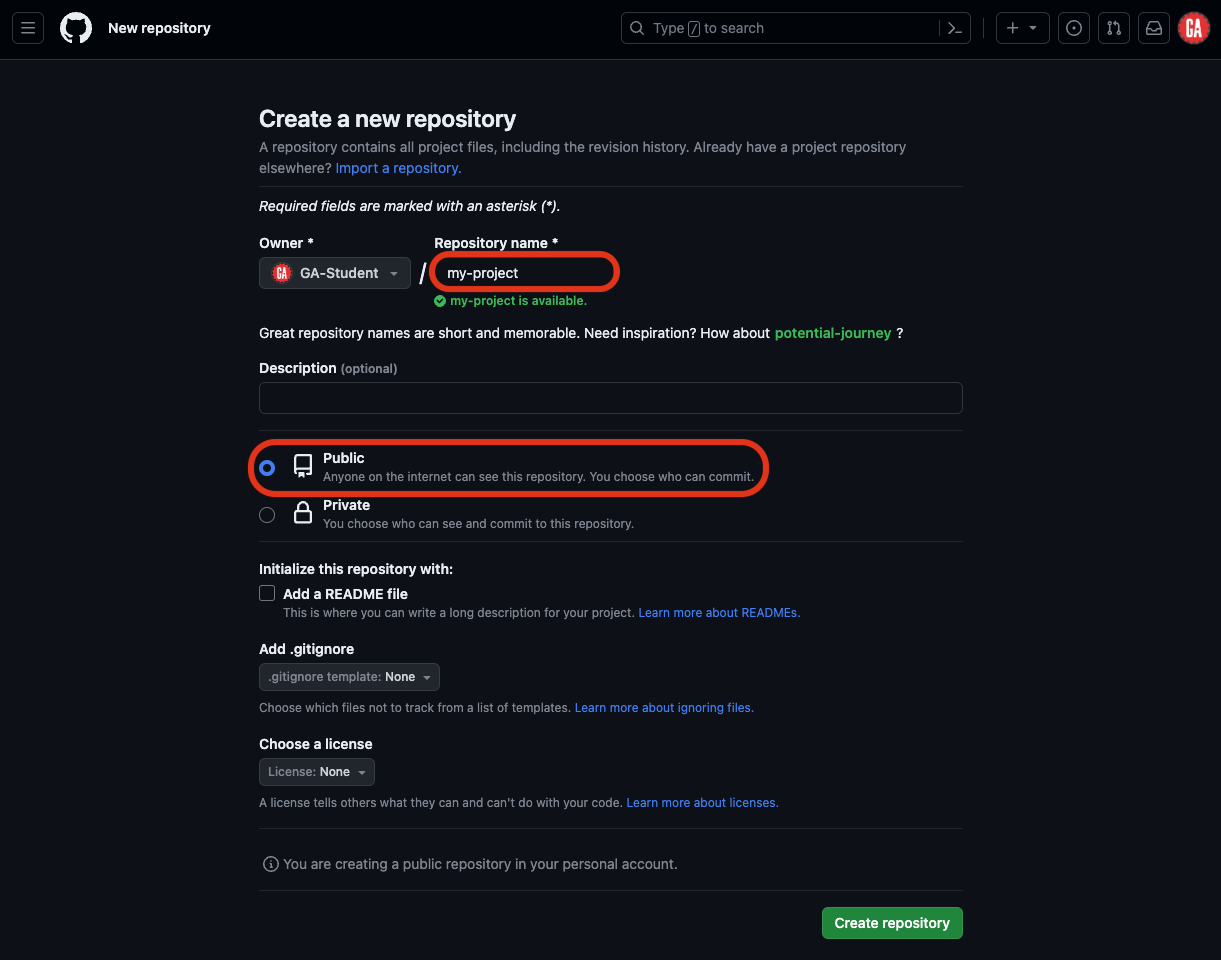
Be sure that you select an appropriate name for the repository. Many organizations use lower-kebab-case for their repo names, but there are no strict rules for repo names, except they must only contain ASCII letters, digits, and the characters ., -, and _.
If you plan to share this project with others (for example, if you will submit it as part of an assignment), make sure the repository is set to Public:
Also, make sure that none of the following options are selected:
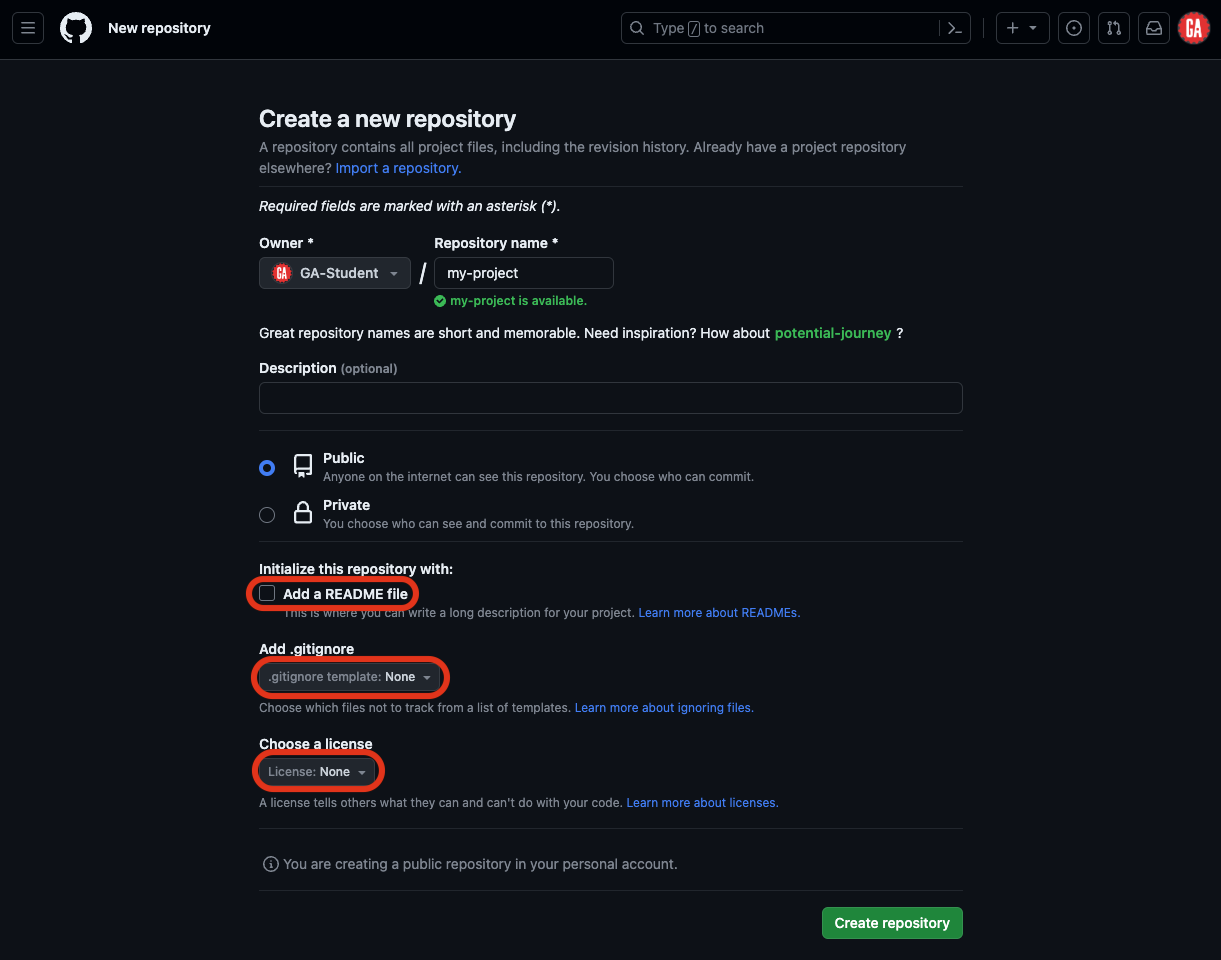
These options can be useful later, but for now, do not use them while you are still learning the basics.
When you’ve entered these items, click the Create repository button:
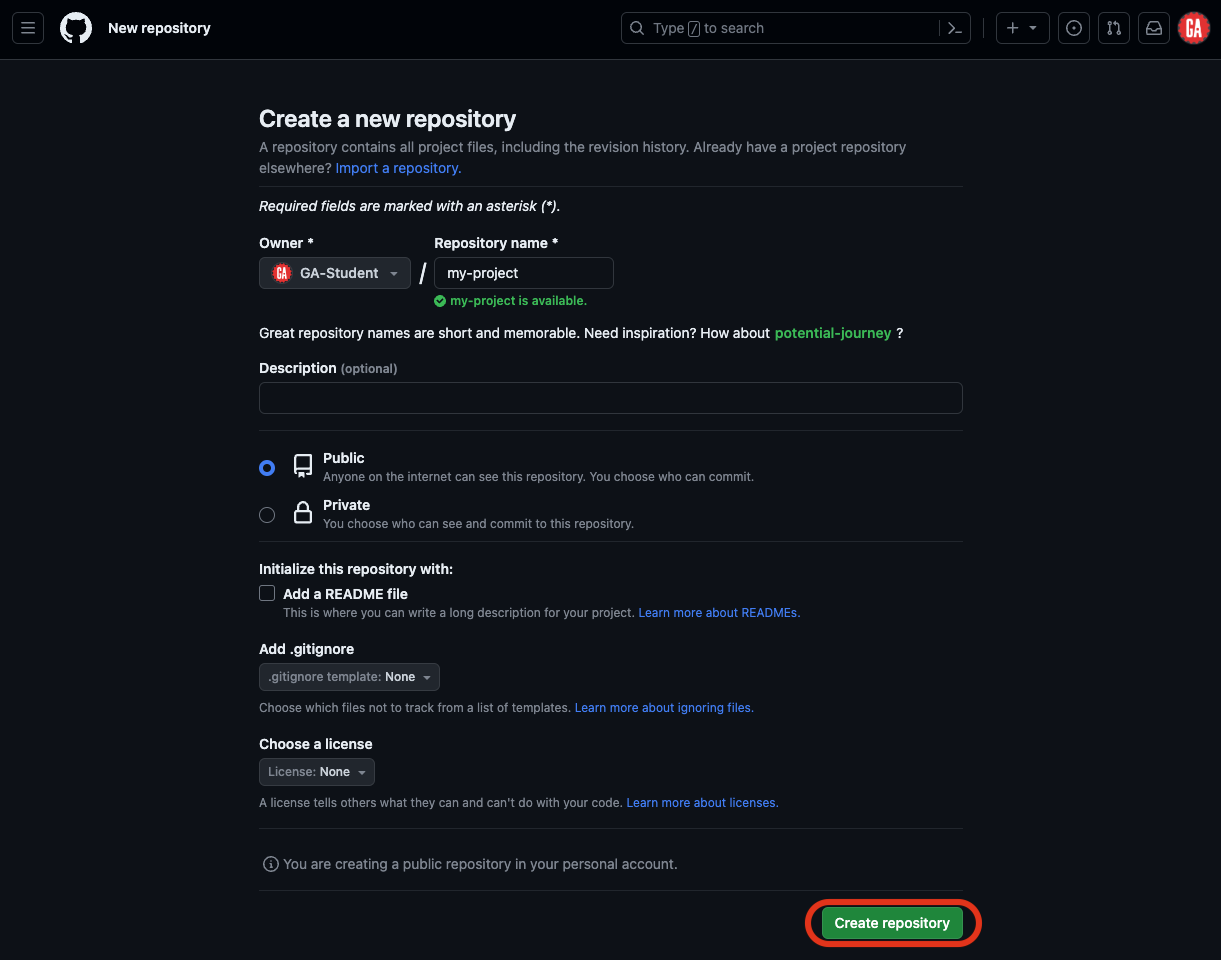
You now have a remote repository on GitHub!
Cloning a repository
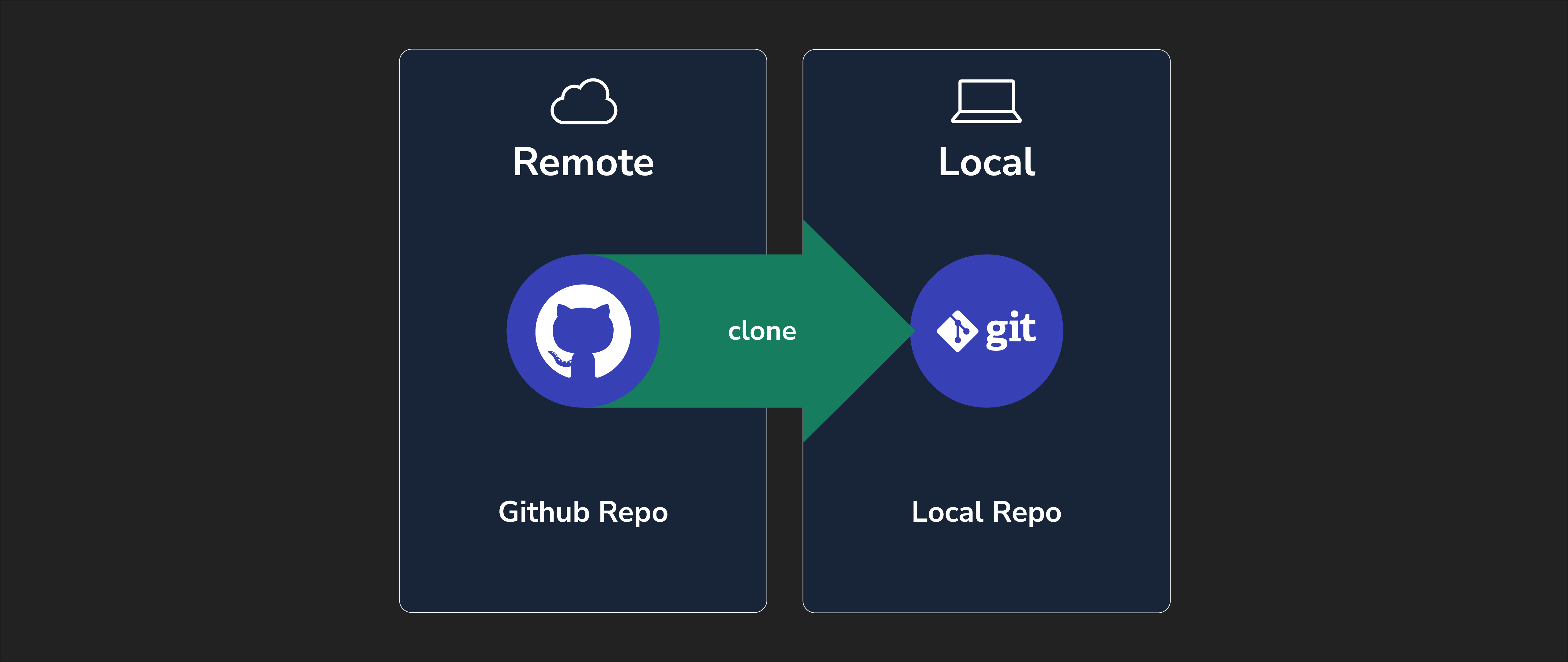
Cloning allows us to take the current version of a project from a remote repository on GitHub and copy it into a local repository on your computer.
You’ll follow these steps any time you want to make a copy of a project that already exists on GitHub.
Step 1
Navigate to the parent directory where you want the cloned directory to exist:
cd ~/code/ga/lectures
Step 2
Using the URL from GitHub, clone the repository:
git clone https://github.com/<original-author>/my-project.git
Do not copy the above command. It will not work. Your username will replace <original-author> in the URL above. Also make sure my-project.git matches the name that you gave the repo when you were creating it
🧠 When you clone a repository, a directory matching the repository’s name on GitHub will be created automatically.
For example, when we clone the
my-projectrepo, all the files in that repo will be copied into a newmy-projectdirectory. This directory will be in our~/code/ga/lecturesdirectory.
Step 3
Navigate into the new directory and open it in VS Code:
cd my-project
code .
🧠 When you clone a repository, an origin remote will automatically be set using the URL you used to clone it. You can confirm this with the
git remote -vcommand. If you’ve cloned a repository that you don’t own (or have write access to), you won’t be able to push changes!